Sve predradnje smo napravili. Sada slijedi Final Touch. Pokrenite setup TFS 2010, instalirajte “Team Foundation Server Administration Console”
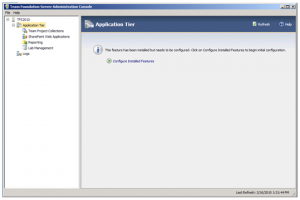
Pokrenete “Configure Installed Features”
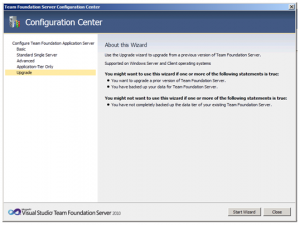
Označite “Upgrade” kako bi pokrenuli “Start Wizard”
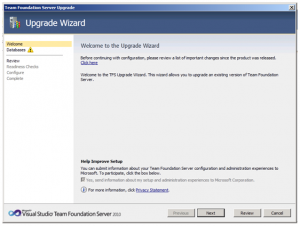
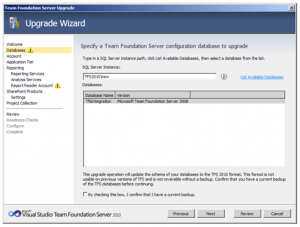
Unesite ime SQL instance na koji ste napravili restore TDS 2008 baza, (u našem slučaju to je na istom serveru gdje instaliramo TFS 2010), selektirajte opciju “List available databases”, gdje će se pojaviti dostupna baza. U ovom slučaju “TfsIntergration”. Klik na Next.
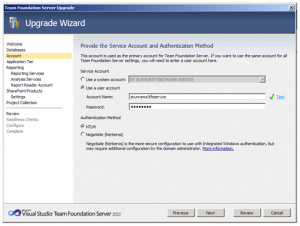
Unesite servisni account i tip autentikacije kako je navedno na slici.
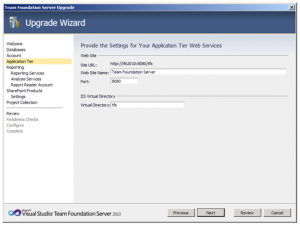
U niže navednom polju ostavite sve by default.
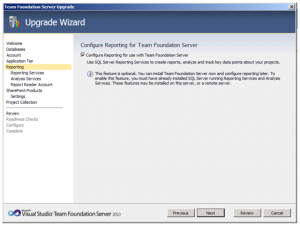
Označite Configure Reporting for use with Team Foundation Server
SSRS trebalo bi biti prethodno istaliran i konfiguriran. Nakon što unesete ime SSRS instance klik na “populate URLs”.
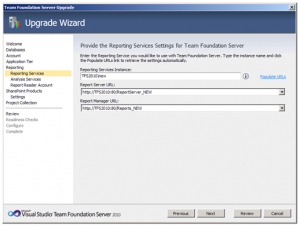
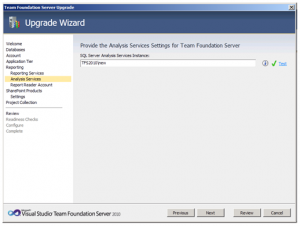
Unesite SSAS instancu i klik na Next.
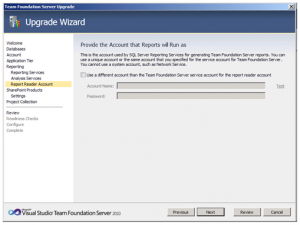
Ukoliko koristite drugi account za Reporting Reader potrebno je unijeti promjene, a ako koristite isto ostavite prazno polje i klik na Next.
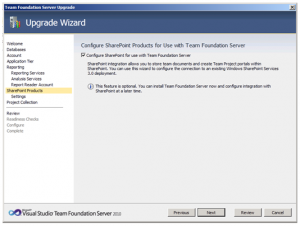
Selektrajte checkbox za konfiguraciju SharePointa, te klik na Next.
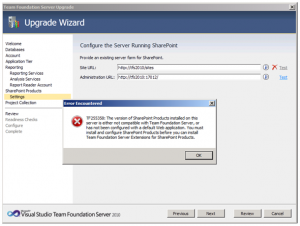
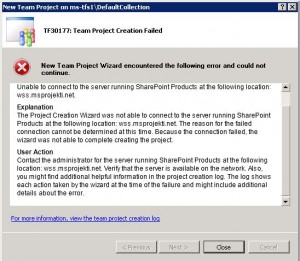
SharePoint web aplikacija trebala bi biti kreirana i pripremljena tako da koristi “staru” bazu. Ukoliko niste konfigurirali kako treba pojavit će se ovakav error.
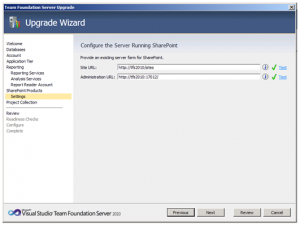
Kada ste napravili i ispunili sve preduvjete za SharePoint, dobit će te sliku kakva je dolje.
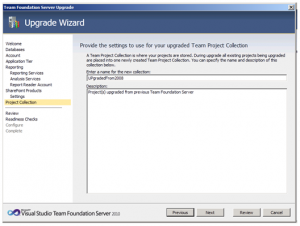
Unesite ime projektne kolekcije i klik na Next.
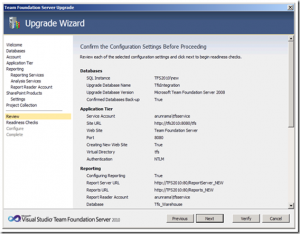
Potvrdite postavke i klik na “Verify”
Kada je provjera prošla, bez grešaka, nastavite sa konfiguracijom.
Ukoliko se pojavi greška nećete biti u mogućnosti nastaviti dalje.
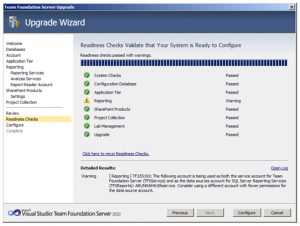
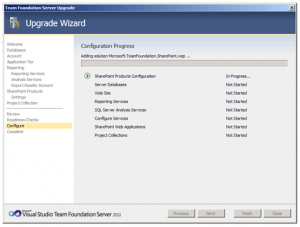
Konfiguracija kreće.
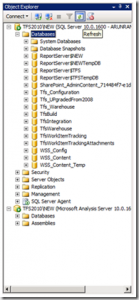
Kada je konfiguracijski proces završen, trebali bi vidjeti novo kreirane baze,
(TFS_Configuration, TFS_Warehouse i TFS_projectcollectionname), ali još uvijek su stare TFS baze netaknute.
Konfiguracijski dio je kompletiran, te može započeti upgrade proces.
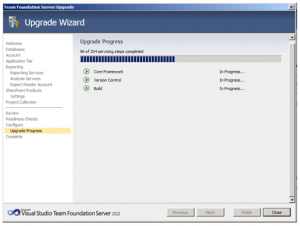
Upgrade proces je završen….
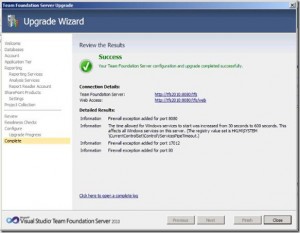
Nakon upgrade procesa dolazi na red fine tunning i administracija TFSa, ali o tome u sljedećem postu.
 After you opened Configuration Editor go to the Search Configuration… and open.
 When you open Search Configuration expand Server-ApplicationHost.config and in the low right corner click on hyperlink, C\\Windows\System32\Inetsrv\Config\ApplicationHost.config.
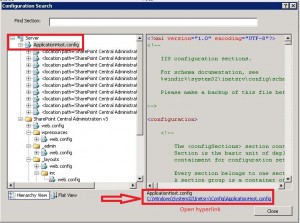 When ApplicationHost.config file appears, go to
 Insert two line like in the picture below. You must enter value in KB.
 NOTE: don’t forget to reset IIS!