I believe in Hyper-V!

February 2012Monthly Archives

Windows service does not want to start under a domain user account

For many reasons we must run some Windows services under a specific user account. Because of that we sometimes have a problem with starting those services when we reboot the server. Service does not want to start regardless of the Automatic startup type. Why? In this post I would like to explain how to resolve that issue.

For example:

In my environment I have one service account (mydomain\TfsTestLabManagement) for few services on Team Foundation Server. One of those services is Visual Studio Test Controller service which is running under mydomain\TfsTestLabManagement  domain account and is set to Automatic start.
I added that account in the Log on as a service under  Default Domain Policy. When I reboot the TFS server service does not want to start. Because of that I need to start service manually and every time I need to enter password and click Start.

Wrong configuration:

2

When you put Automatic start under Startup Type the service does not want to start and you need manually start the service.

What you need to do.

Step 1.

Add service account in the Log on as a service in Default Domain Policy.

1

Step 2.

On the server under the Services in the Log On tab add service account.
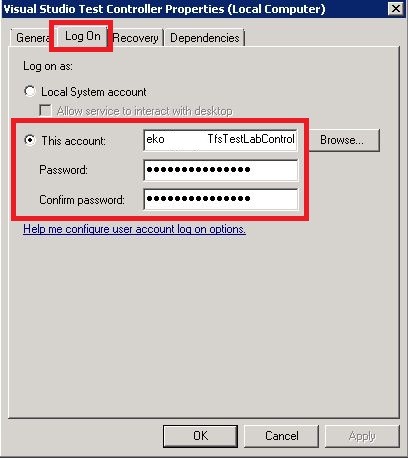
4

Step 3. the last and the most important step! Under the General tab Startup Type: choose Automatic (Delayed Start) like in picture below.
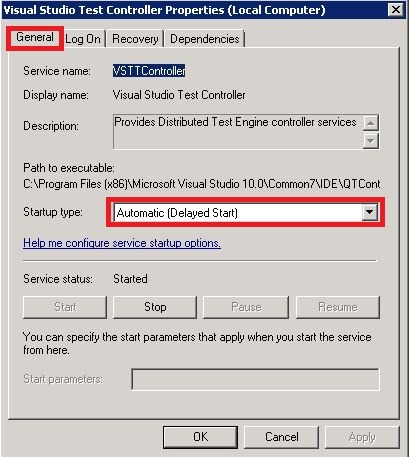
5

Next time when you reboot the server, service will start automatically. The catch was only in Automatic (Delayed Start) Startup Type.

That’s it for today.
Clone Virtual Machine with Virtual Machine Manager

Today I had to Clone a virtual machine in my production environment and I would like to explain how it works. This is a simple procedure with few steps and the whole procedure will be explained as always with many pictures. Before the cloning of virtual machine image you have to prepare the System for Cloning.

As you probably know by now, Microsoft-based operating systems use SIDs (Security IDs) that are generated as part of the initial setup of Windows. If you have more than one computer with the same SID, this could cause problems, and cloning a computer (either physical or virtual) without re-generating this SID can cause SID duplication.

How to prepare the system for cloning I will write in another post.

Step 1.

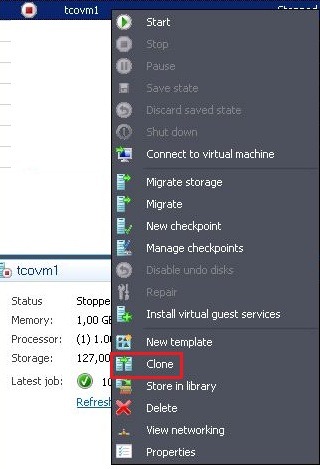
You must first shutdown virtual machine which you want to Clone. When your VM is turned off, right click on VM and choose Clone.

1

At the second step choose new name for your new virtual machine.

2

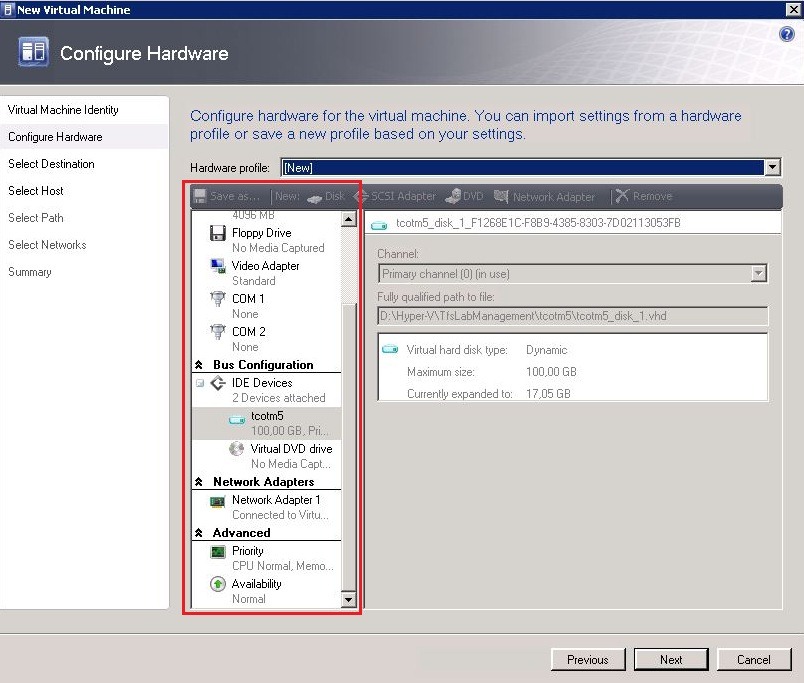
On the Configure Hardware field if you need the same hardware configuration like previous VM leave hardware configuration by default or edit what you need.

3

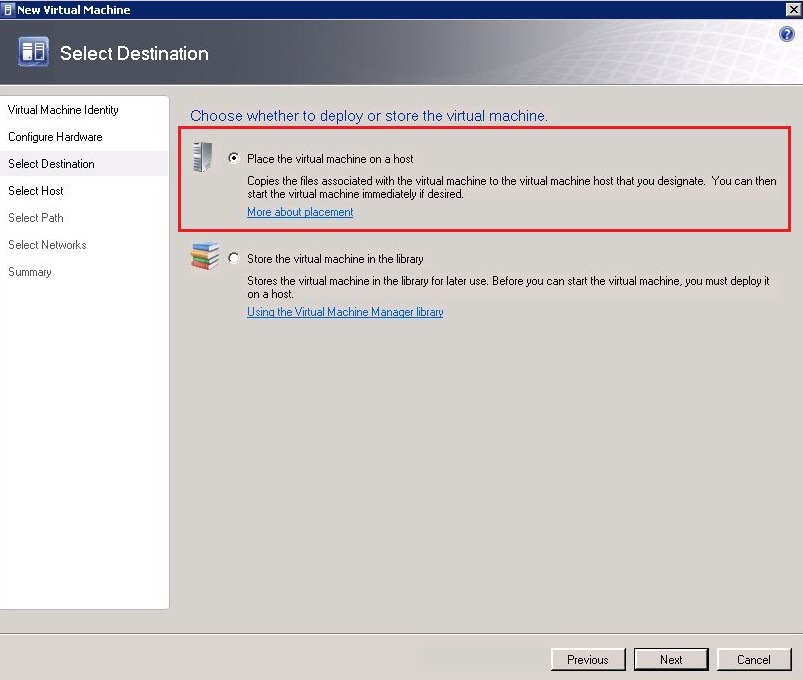
At the next step you need to choose where you want to deploy the virtual machine. I chose “Place the virtual machine on a host”

4

At the next screen I chose host on which was located the previous virtual machine.

5

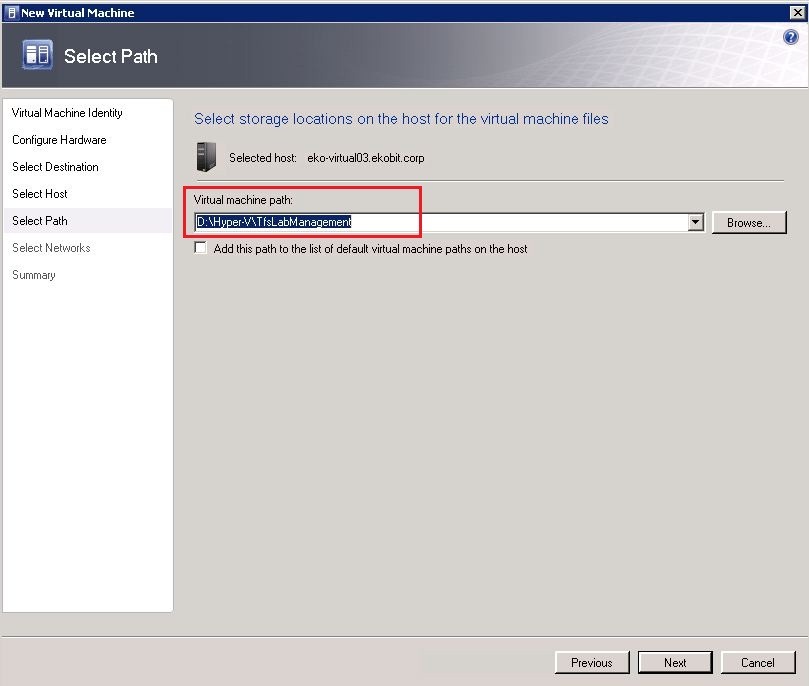
Select virtual machine path…

6

Specify virtual network…

7

At the end review the virtual machine settings. If you want to start cloned virtual machine immediately check mark “Start the virtual machine after deploying it on the host”  and click Create.

8

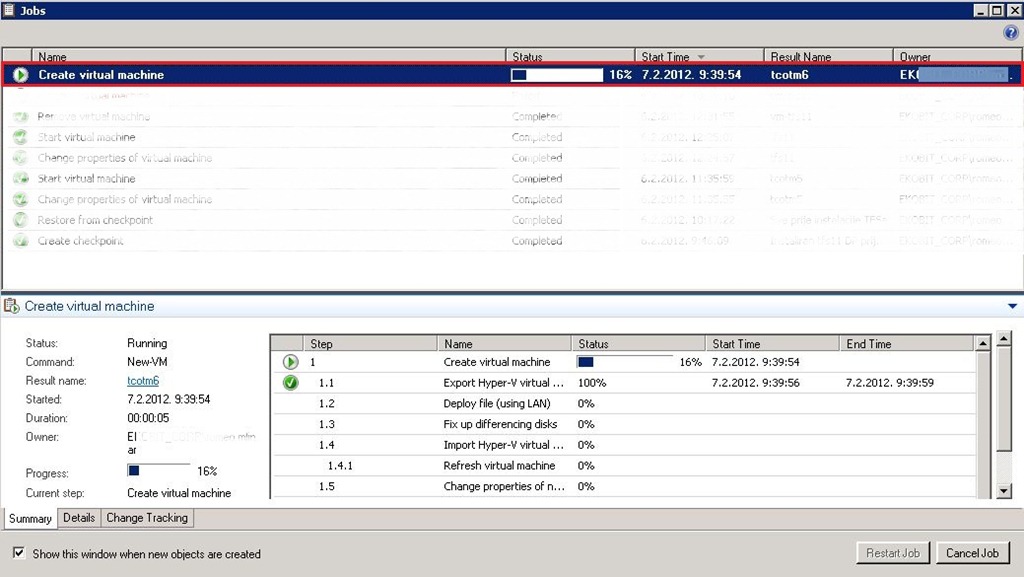
The process started.

9

When the process is finished we have two of the same virtual machines whit the same settings.

10

Before you turn on both virtual machines you need to rename the new one. How to do that, especially if your vm’s are in the domain,  I‘ll describe this in my next post.

Until then have a nice week!

Deploying DaRT to the PC (Adding DaRT to the Boot Menu)

Deploying the DaRT image in a recovery partition to each PC means you always have the right DaRT image when you need it for each PC. That means if you have Windows 7 x64 you need DaRT image created only for Windows 7 x64. DaRT can be placed in its own partition or over the top of the WinRE recovery partition for F8.

In this post I would like to describe how to manually deploy DaRT image to the Boot Menu on your PC’s or laptops. As always I will describe entire procedure through lots of pictures.
This is a very simple procedure, and I hope it will help someone.

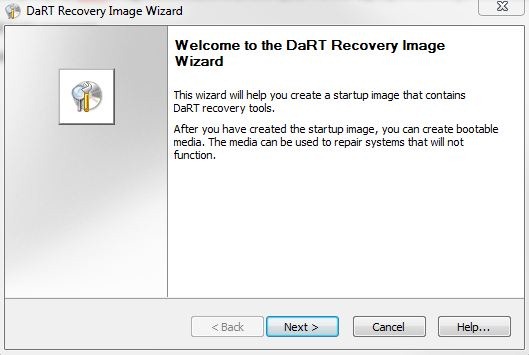
First of all create your DaRT ISO image with the desired settings and files.

1

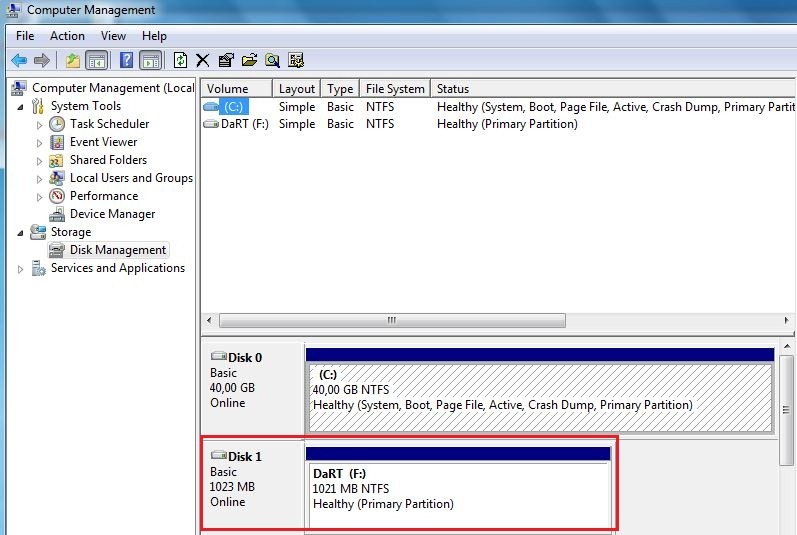
Create a partition on the target PC equal to or greater than the size of your DaRT ISO. The size of the DaRT ISO has approximately 210 MB for Windows 7.
In my scenario, I created \F: partition with 1GB size.

2

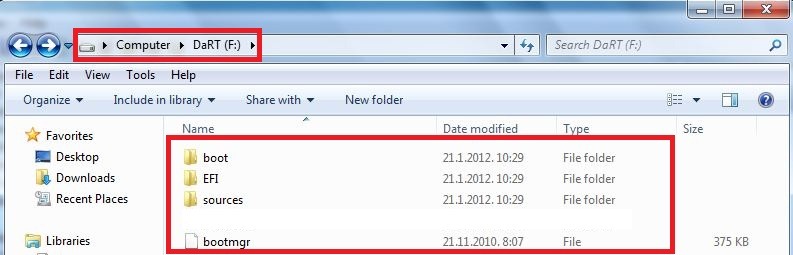
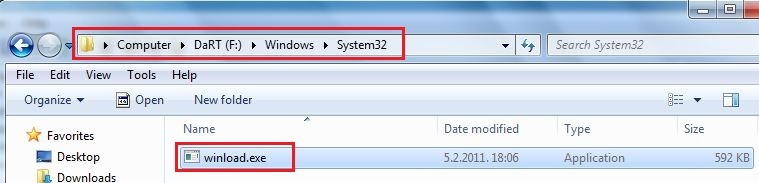
Extract the files from the DaRT ISO and copy them to your target partition, also on the target partition create folder named Windows\System32  and from C:\Windows\System32 copy winlogon.exe to that folder. Just like on the pictures below.

3
4

OK, now follows the most important part!
Create script with relevant command line. In my scenario follow the script described below.

bcdedit /create {ramdiskoptions} /d “IT Pro UG DaRT Demo”
bcdedit /set {ramdiskoptions} ramdisksdidevice partition=F:
bcdedit /set {ramdiskoptions} ramdisksdipath \boot\boot.sdi
bcdedit /create /d “IT Pro UG DaRT Demo” /application OSLOADER –>Record the GUID returned from this command
bcdedit /set {GUID} device ramdisk=[F:]\sources\boot.wim,{ramdiskoptions}
bcdedit /set {GUID} path \windows\system32\winload.exe
bcdedit /set {GUID} osdevice ramdisk=[F:]\sources\boot.wim,{ramdiskoptions}
bcdedit /set {GUID} systemroot \windows
bcdedit /set {GUID} winpe yes
bcdedit /set {GUID} detecthal yes
bcdedit /displayorder {GUID} /addlast
bcdedit /timeout 20

Type the script in notepad and save it as “DaRT.bat”. This is an automated script.

If you want to run script manually open command prompt and type command lines described below.

bcdedit /copy {current} /d “IT Pro UG Dart Demo”
bcdedit /set {GUID} device vhd=[G:]\sources\boot.wim
bcdedit /set {GUID} osdevice vhd=[G:]\sources\boot.wim
bcdedit /set {GUID} detecthal on
bcdedit /timeout 20

If you want to know more about how to configure Boot Configuration Data follow this link.

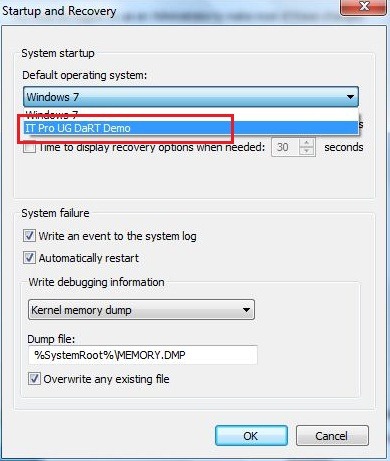
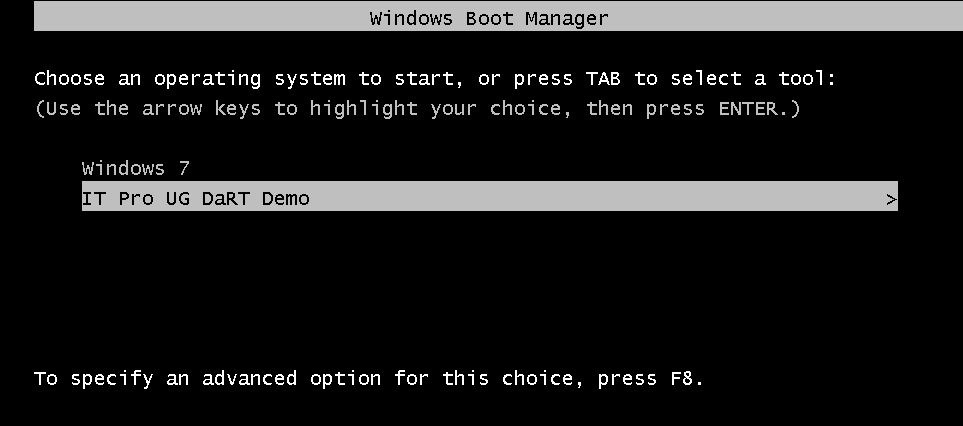
At the end you have new boot entry on your PC or laptop.

5 

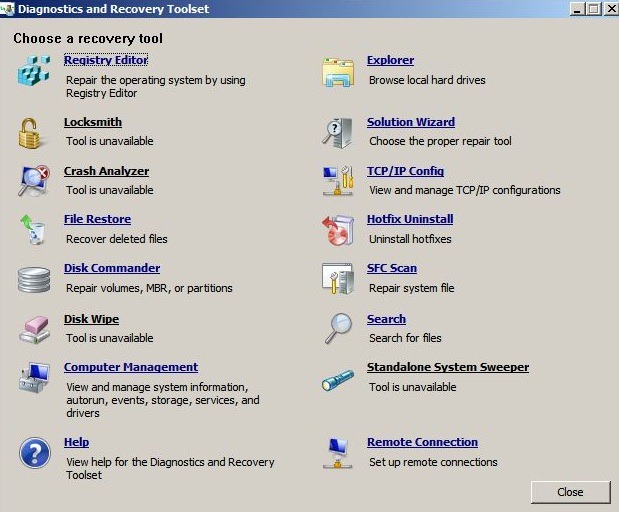
If you need repair your or users PC’s or laptops, restart the machine end boot from your newly created recovery partition.

6
7

In rare support scenarios where the hard drive is severely damaged (eg. MBR failure), booting from the hard drive image of DaRT is not an option and a CD/DVD or USB will need to be used.

In one of the following posts I will describe how to use a Remote Connection with the DaRT7 and which all features we have for that scenario.

That’s it for today!