I believe in Hyper-V!

Disable IPv6 in Windows Server 2008 R2 all editions

This is old information but can be useful for those who read my blog.

We have three methods to disable IPv6 in Windows Server 2008 R2.

The first method is the fastest;

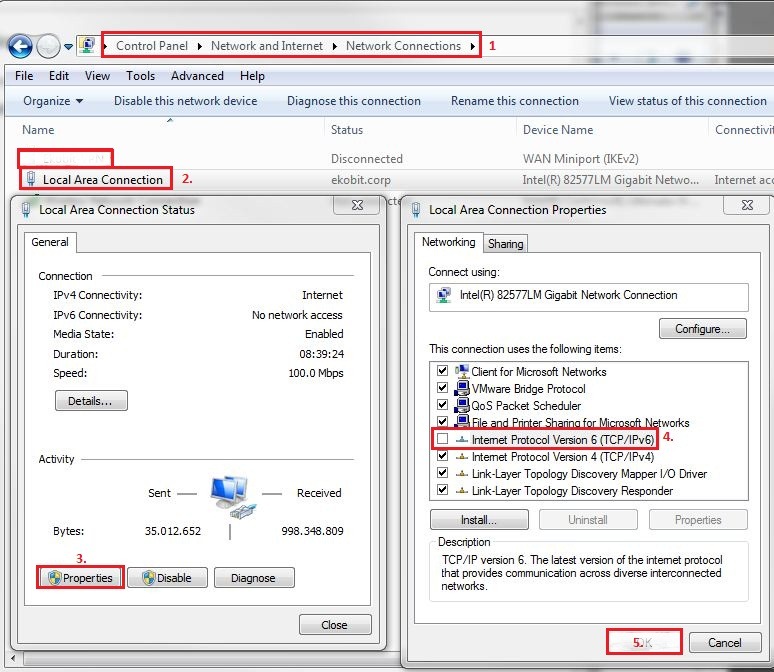
Open Control Panel –> Network and Sharing Center –> Change adapter settings –> double click on your network adapter –> Properties –> deselect Internet Product Version 6 (TCP/IPv6) –> click OK and Close.
2

If you want to completely disable IPv6 you need to use second and the third methods.

Second method:

– Click Start –> run –> regedit

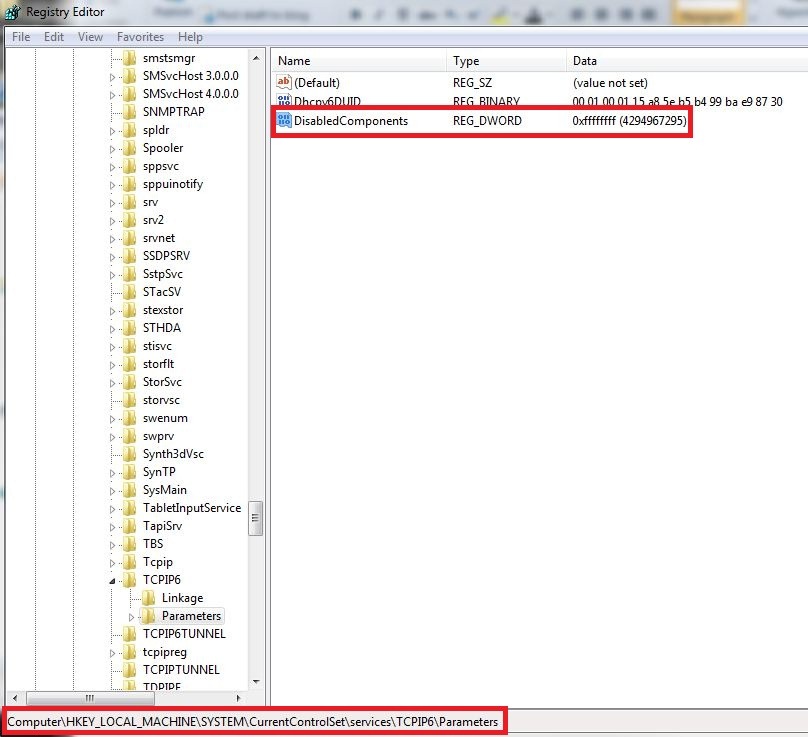
– Locate the following registry entry: HKEY_LOCAL_MACHINE\SYSTEM\CurrentControlSet\Services\Tcpip6\Parameters

– In the details pane click New and then click DWORD (32-bit) Value.

– Type DisabledComponents, and then press ENTER.

– Double-click DisabledComponents, and then type 0xffffffff in Hexadecimal or 4294967295 in Decimal.

Note: The 0xffffffff value or the 4294967295 value disables all IPv6 components except for the IPv6 loopback interface.
http://support.microsoft.com/kb/929852
3

Third method:

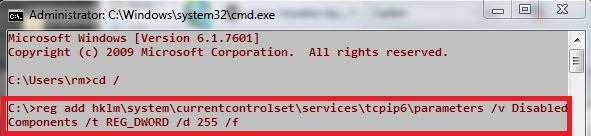
Open command prompt and type:

reg add hklm\system\currentcontrolset\services\tcpip6\parameters /v DisabledComponents /t REG_DWORD /d 255 /f

4

Configure Self Service Portal with HTTPS!

In this post i would like to explain how to configure Virtual Machine Manager Self Service Portal to use HTTPS.

If your users need to use many virtual machines or if they need to manage, maintain than the best solution is to use Self Service Portal. Self Service Portal is a part of Virtual Machine Manager product. The Self Service Portal is an extensible web-based application that provides virtual machine self-service provisioning functions to groups within an organization. The SSP installation is very simple but when you need more secure access to your SSP you need to use HTTPS, specially if you use external access.

In this scenario I’ll use Microsoft System Center Virtual Machine Manager 2012 and Microsoft Threat Management Gateway 2010.

Step 1.

You need DNS entry for SSP. Something like myssppotal.domain.com. If you can manage your DNS records do it personally, or if you can’t ask your hosting provider to do it for you.

5

Step 2.

For HTTPS you need certificate. Request certificate from your Certification Authority server. The certificate must have the same name like your DNS entry “mysspportal.domain.com”

6

Step 3.

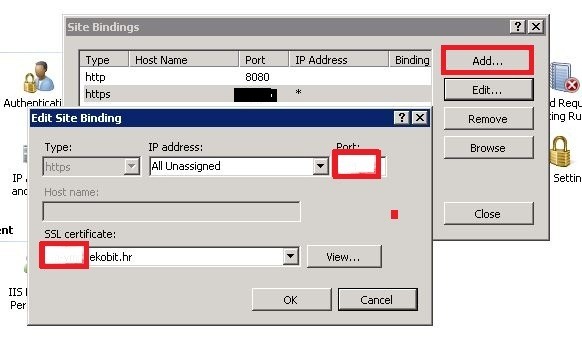
Open your IIS, go to Microsoft System Center Virtual Machine Manager Self-Service Portal (x64) site open Bindings and Add https, assing certificate and chose ssl port. Default port is 443, but you can to use some other port.

7


Step 4.

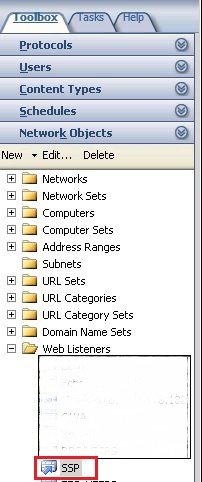
Open your TMG Management Console, create new Web Listener, assign a issued certificate and create new Firewall Policy rule for your Self-Service Portal.

8

9


Step 5.

When you are done open you SSP from outside.

ssp_link
1
10

Now you have https access to your Self-Service Portal site and you can create, manage and do it what you want with your virtual machines.

That’s it!

Migrate TFS 2010 Project Collection to another TFS 2010 server

If you want to migrate one or more TFS Project Collections from one TFS server to another follow this procedure. Procedure is very important and if you skip any step your will have the problem. For that reason read and follow this article from beginning.

NOTE: You can’t to migrate Team Project only, you need to migrate whole Collection. With this process you migrate Work Items and Source Control only. In my second blog post I’ll write about how to migrate Reports and SharePoint sites. That is more complicated procedure.

Step 1.

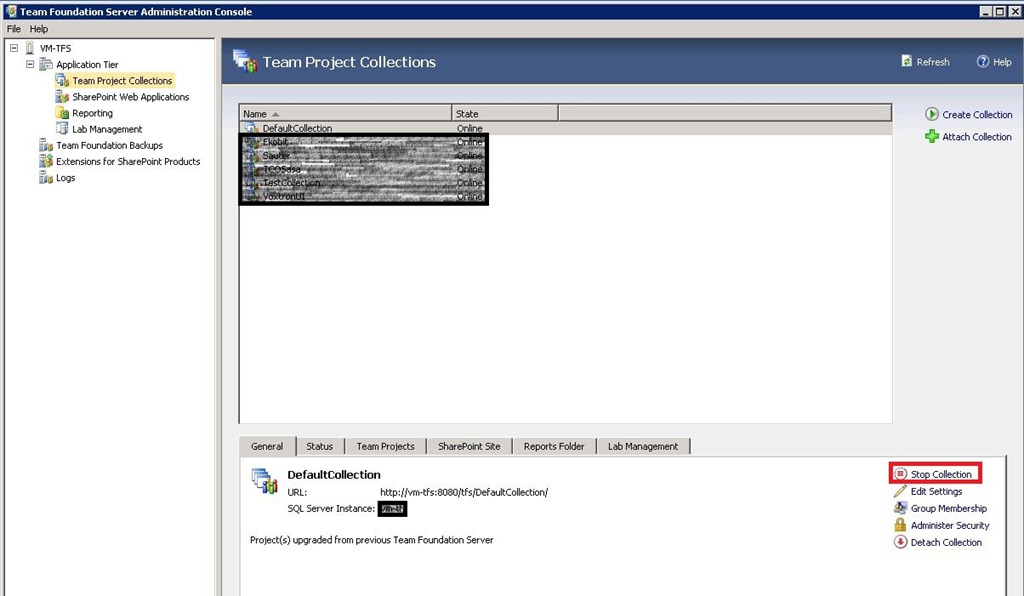
Stop Team Project Collection which you want to migrate.

1

Step 2.

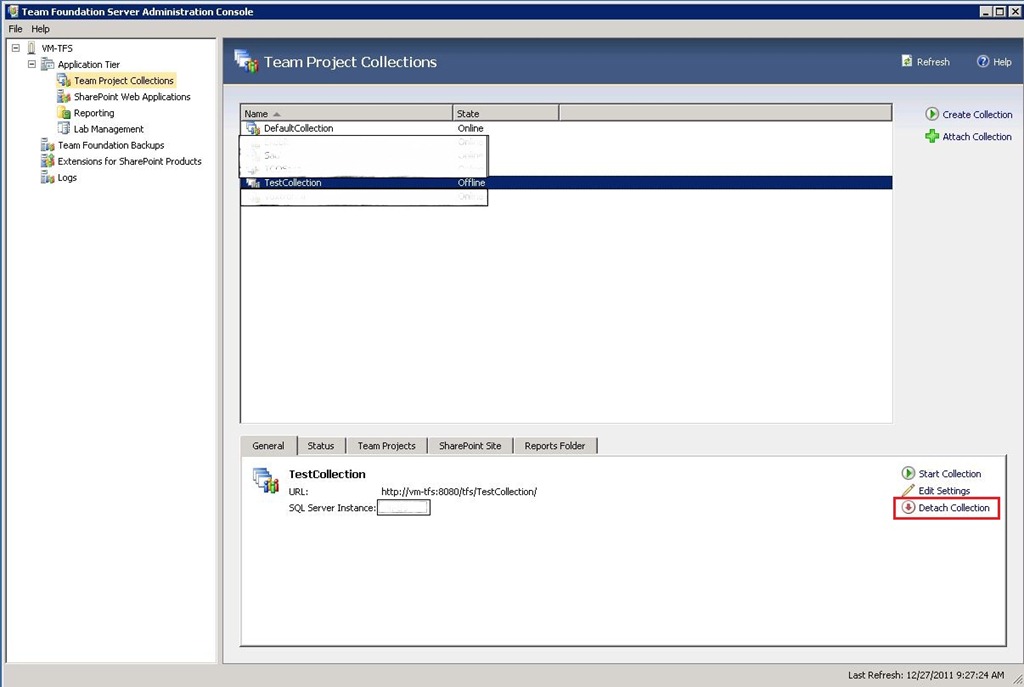
Detach Collection.

2

Step 3.

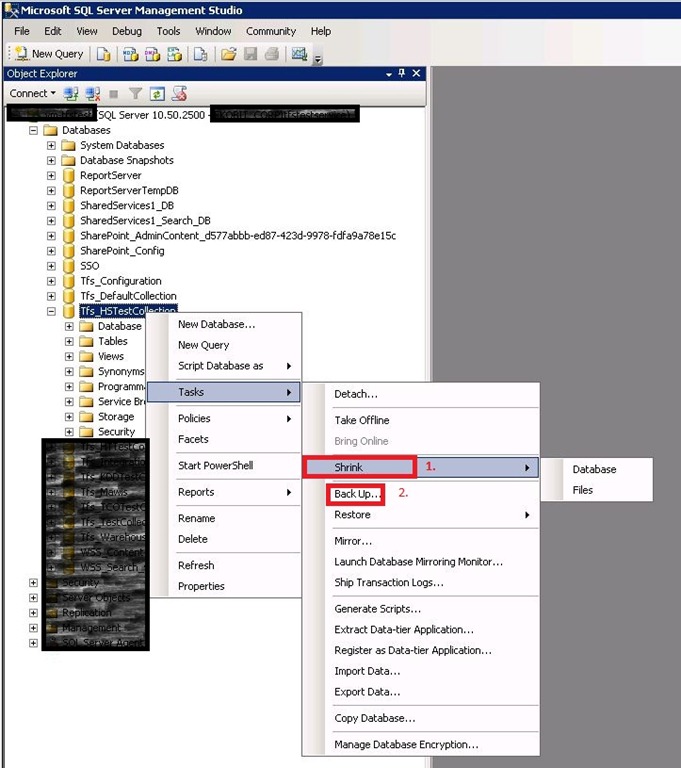
Open your SQL Server Management Studio and backup database which you want to migrate. Before backup I advice to shrink your database (log and data).

3

Step 4.

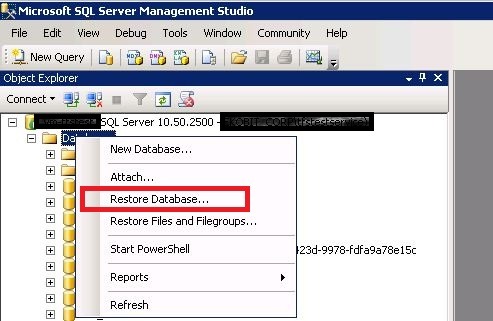
Copy database on to your new TFS server and restore to SQL server.

4

Step 5.

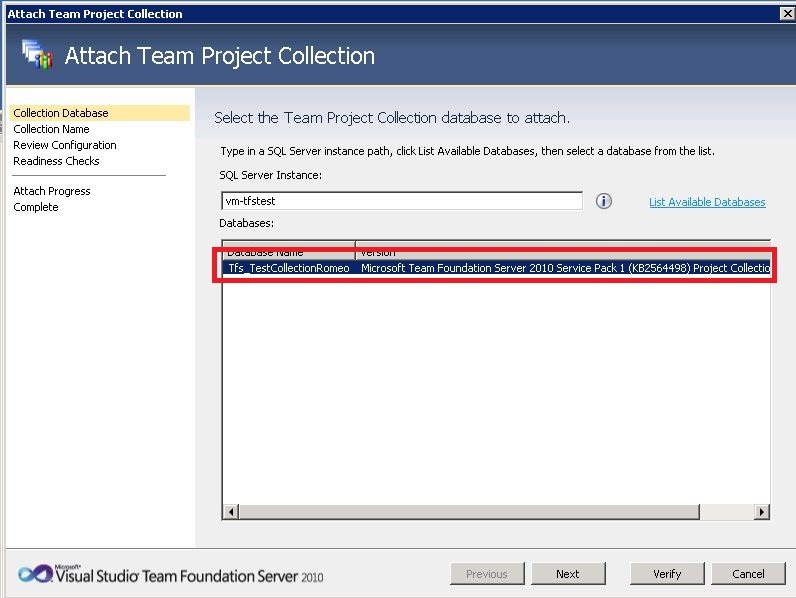
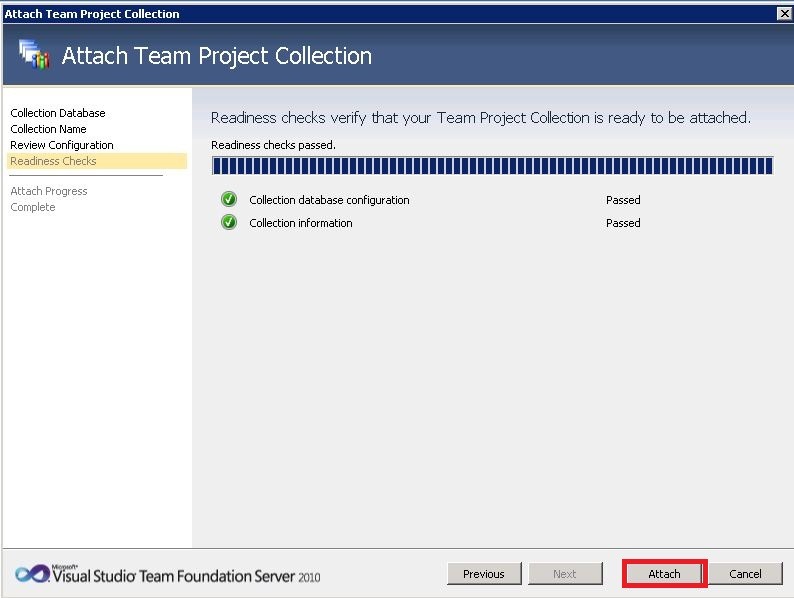
Open Team Foundation Server Administration Console go to Application Tier >>> Team Project Collections, click to Attach Collection and follow the Wizard.

5

Your restored database will appear.

6
7
8

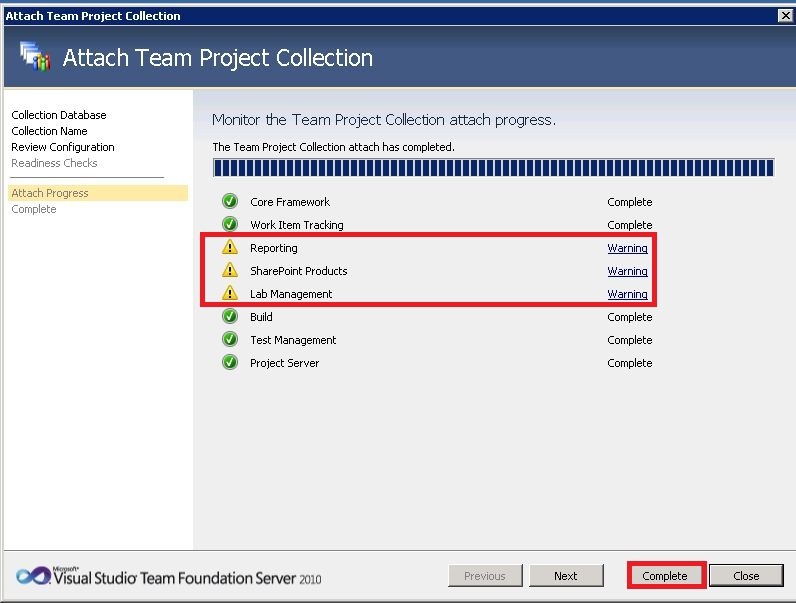
Team Project Collection is attached but with warnings about Reporting, SharePoint Products and Lab Management. As I mentioned before, you can’t to migrate Reports and SharePoint site easy.

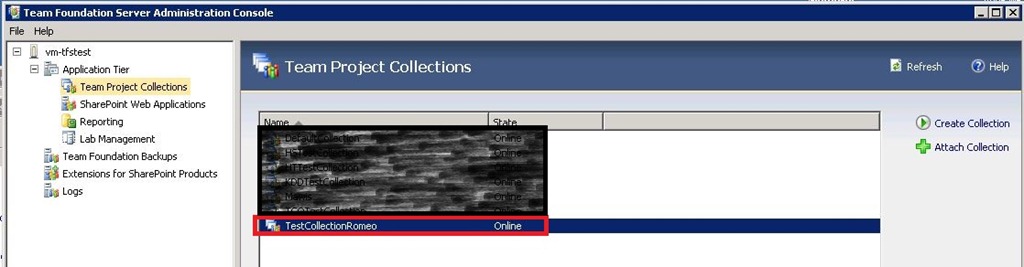
Migrated Team Project Collection is up and running.

9

Step 6.

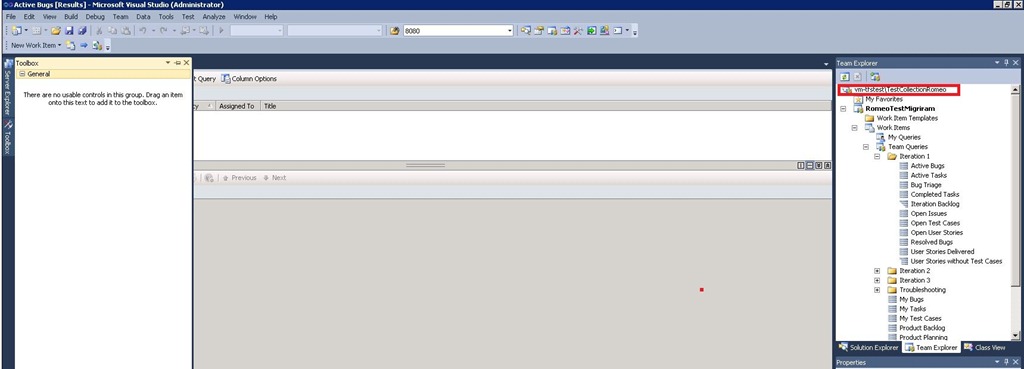
Check your migrated Project/s.

10


That’s It!